How to Turn Long Videos into Short Clips with AI
Step-by-step guide to upload a 1-hour video and receive several 9:16 clips ready to post, without editing frame by frame.
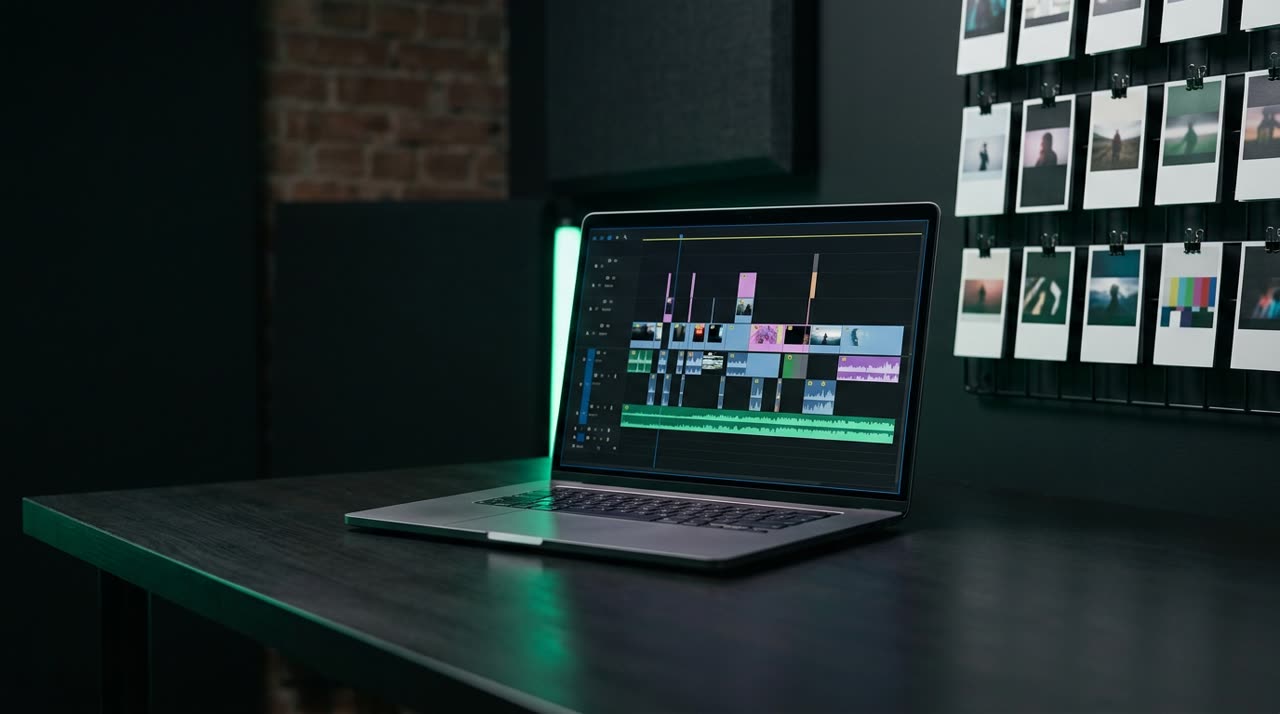
How to Turn Long Videos into Short Clips with AI
You recorded a two-hour live stream, a podcast, a class, or a sermon. Inside that file, there’s material for weeks of short content, but no one has time to watch it all again hunting for the best moments. This is exactly where the question that brought you here comes in: how to turn long videos into short clips without spending all night editing.
The short answer: you upload the video, the AI transcribes it, finds moments that stand on their own, and returns several 9:16 clips already captioned and ready to post. The long answer is this guide, with the real step-by-step inside Picotta, our clip studio.
What the AI Does Behind the Scenes
Before the step-by-step, it’s worth understanding what happens when you hit "generate." It’s not magic, but a sequence of steps:
- Transcription — the audio turns into text with word-by-word timestamps.
- Curation — the AI reads the entire transcript and scores each moment based on hook, turn, whether it stands alone, and emotional impact. Audio cues (laugh peaks, excitement) and "most rewatched" YouTube segments help decide.
- Reframing — each clip is cropped to vertical 9:16, following the speaker’s face, not a fixed center.
- Render — automatic captions, branded post theme, and final export.
The result is a batch of clips already formatted perfectly for TikTok, Reels, and Shorts.
Step-by-Step: From 1 Hour to Multiple Clips
1. Upload the Video (or Paste the Link)
You don’t even need to download the file. Paste the link from YouTube, Vimeo, Twitch, Rumble, Drive, and other long video sources — or upload the file directly from your computer. The upload goes straight to our storage without slowing your connection.
2. Choose Your Brand and Format
Select which of your brands to use (logo, name, color) and set the essentials:
- Number of clips you want from the source.
- Duration of each clip.
- Aspect ratio: 9:16 for Reels/TikTok/Shorts, 1:1, or 16:9.
- Segment (from/to), if you want to process only part of the video.
If you’re in a hurry, the Viral Clips mode applies the recommended preset and the AI decides the rest. For full control, the Custom mode opens all the settings.
3. Let the AI Cut
Hit generate and you can close the screen — processing runs on the server. Track progress on the dashboard and get a notification on WhatsApp when clips are ready. Each clip comes with:
| Feature | What It Does |
|---|---|
| Automatic captions | Synchronized captions in various styles (impact, karaoke, neon, and more) |
| Face reframing | 9:16 framing follows whoever is speaking |
| Clean cuts | Pauses and silences removed for better pacing |
| Post theme | Card with your logo, name, and badge, styled like top-performing clips |
| Title + caption + hashtags | A "ready-to-post" kit per clip, per platform |
4. Review, Adjust, and Download
Before downloading, you watch each clip in the player. Like it? Download. Want to tweak? The Studio editor lets you fix caption text, move the logo, change the hook, reframe, and adjust the segment — all without spending credits, since it’s just re-rendering overlays on the generated clip.
Pricing and How Billing Works
Picotta is straightforward: 1 credit equals 1 minute of source video processed. You pay for the source minute, not per clip — so generating 3 or 10 clips from the same segment costs the same. This reflects the real transcription cost and avoids surprises.
There’s a free plan to test (with watermark) and paid plans in Brazilian Real, via card. Details for each plan are on the pricing page.
Where Picotta Stands Out
There’s no shortage of AI clip tools, and some are very good. OpusClip is an international reference with a mature ecosystem; Cut.Pro serves the Brazilian market well. It’s worth exploring options — we even made an honest comparison of the best AI clip generators and a Cut.Pro vs Picotta review.
Where Picotta benefits Brazilian creators:
- Pricing in Real, on card — no dollar conversion surprises at month’s end.
- Live monitor — connect your YouTube, Twitch, or Kick channel and clips generate automatically when your live ends. Great for streamers and churches streaming weekly.
- True face reframing and clean cuts, not just center cropping.
- No "AI look" — clips come out clean, with your branding, not a generic template shouting a robot made it.
Can You Improve the Results?
Yes. The AI finds moments, but some care boosts quality:
- Clean audio helps transcription and curation get it right.
- Choose the right genre (or let AI detect) — a sermon needs different logic than a comedy podcast.
- Review the hook in the first 3 seconds: it’s what keeps viewers watching.
For a deeper dive into the creative side, we have a dedicated guide on how to make viral clips with hook, payoff, and rhythm. If you edit for clients, the workflow scales well for social media and agencies.
Conclusion
Turning long videos into clips is no longer manual labor. Upload an hour of content, the AI transcribes, selects the best moments, reframes on faces, removes pauses, captions, and delivers multiple 9:16 clips ready to post — you just review and download. More time creating, less time hunting timestamps.
Want to try it with your own video? Start clipping now, it’s free to test. If you want to keep reading, check out the blog or earn extra income with the affiliate program.
Pronto pra picotar o seu próximo vídeo?
Cole o link e receba cortes prontos pra postar. Grátis pra testar.
Comece a picotar →Sem cartão de crédito. Cancele quando quiser.