Face Reframe and Jump Cuts: Why Your Cuts Need Them
Two features that separate amateur cuts from ready-to-post clips: framing the speaker and removing dead air. See how each one works.
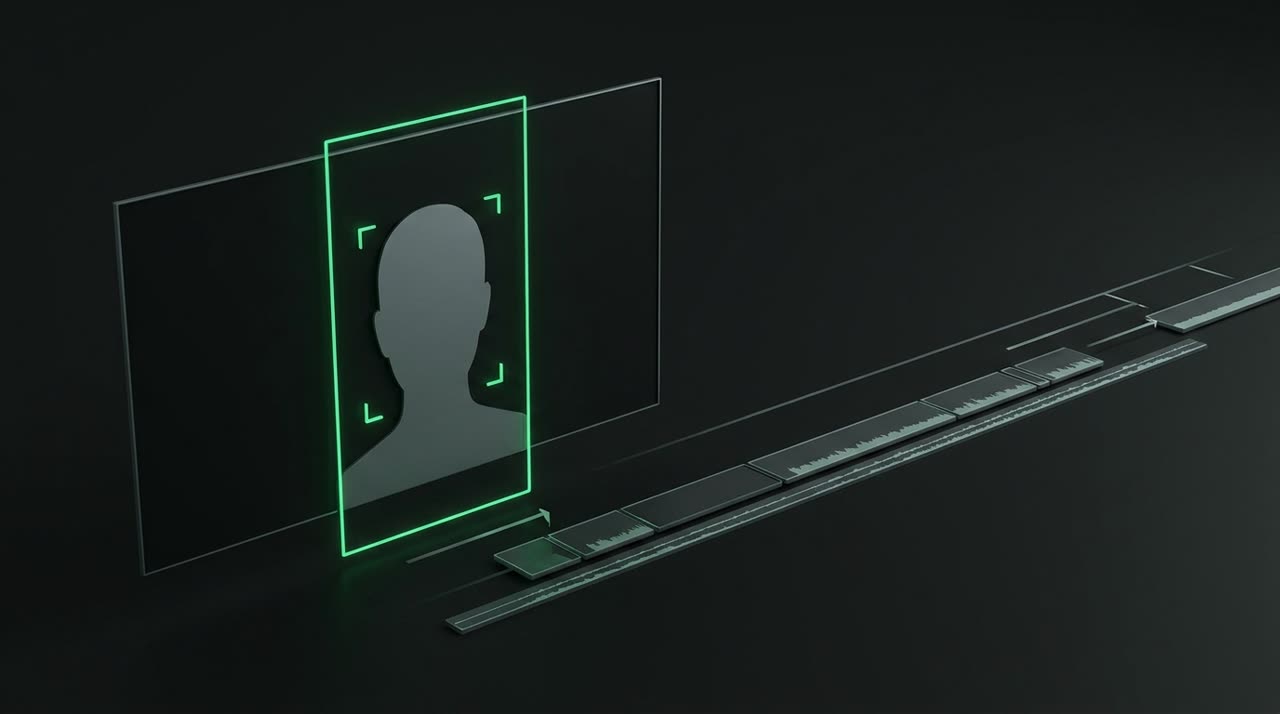
The challenge of turning 16:9 into 9:16
Every automatic cut starts with the same problem: the original video is horizontal (16:9), but social platforms want vertical (9:16). Fitting one into the other can go very wrong.
The lazy way is to crop a fixed center of the screen. It works if the person stays still in the middle — but fails everywhere else. In a podcast table with two people, the center crops the empty space between them. In a distant shot of a sermon, the center crops the pulpit and cuts off the speaker’s head. The result is a cut where the subject is always partially out of frame.
That’s where the two features that most improve cut quality come in: face reframe and jump cuts.
Face reframe: the camera follows the speaker
Reframe means to reposition the frame. Instead of cropping a fixed center, the video follows the face of whoever is speaking. The “camera” moves with the person, keeping them well positioned in the vertical frame.
At Picotta, this is done with face detection running frame by frame. The system not only finds faces — it chooses the best framing for each cut:
- One person speaking: the frame follows them smoothly, without shaking.
- Two people talking: it becomes a stacked screen — each person in half the frame, both always visible.
- Who’s really speaking: when multiple people are on screen, the reframe matches mouth movement with the transcript to follow who’s talking, not just who moves the most.
- Wide shot or distant speaker: when it can’t reliably track a face, the cut defaults to a stable framing instead of shaky movement.
The key detail: if detection fails for any reason, the cut never breaks — it returns to center framing. The reframe improves the result without risking delivery.
Why this matters
A cut where the face is always framed looks edited by a person. Viewers don’t have to search for who’s talking; their eyes are already in the right place. This holds attention in the first seconds — and it’s those first seconds that make or break a video.
Jump cuts: no dead air
The second feature tackles another enemy: pauses.
Natural speech has breathing. “So… um… let me think…” — in long videos this is normal and even charming. In vertical clips, it’s poison. Every second of silence invites viewers to swipe to the next video.
Jump cuts automatically remove these pauses. The system looks at the transcript, identifies silence longer than a threshold, and stitches the speech together, making the cut dense and fast — without cutting words in half.
In practice:
- A 30-second cut with pauses becomes a 26-second content-only cut.
- The pace gets closer to what TikTok and Reels reward.
- Captions adjust accordingly, remapped to the new timing — nothing goes out of sync.
There’s one smart exception: music clips don’t get jump cuts. If the segment is a song, cutting pauses would ruin the melody’s rhythm. The system detects this and leaves the music intact.
They work best together
The strength is that face reframe and jump cuts combine. First, the cut is cleaned (pauses removed), then the framing follows the face over the trimmed material. The result is a cut that feels thoughtfully produced: face always in place, rhythm without gaps, captions perfectly synced.
This matters even more for certain formats:
- Podcasts — stacked screen solves two-person tables. See more at podcast cuts.
- Lives and streams — reframe follows the streamer, jump cuts remove "hold on" moments. Useful for those making streamer clips.
- Sermons and classes — smart framing fixes distant shots.
What if I want control?
Both features have settings. You can turn reframe on or off per cut, and choose whether to apply jump cuts. In the Studio editor, you can manually reframe, switch between face tracking and center crop, and adjust everything without using extra credits — because the cut is already generated, you’re just tweaking.
In automatic mode, Picotta applies the recommended preset: reframe on, jump cuts on, captions synced. This combo delivers the best results for most videos without you lifting a finger.
Why this is a game changer
Many cutting tools stop at the basics: find the moment, crop to 9:16, add captions. Face reframe that follows who’s speaking and jump cuts that respect music are the next level — the details that make a cut feel hand-edited, not robotic. And those details pay off, because they keep viewers watching.
Conclusion
Framing the speaker and removing dead air aren’t frills. They’re the two tweaks that bring automatic cuts closest to hand-edited quality. One keeps the subject always in frame; the other removes everything that makes viewers swipe away.
If you already make cuts and feel they lack "that finish," this is probably why. Upload a video, let reframe and jump cuts do their work, and compare it to what you did before.
Want to see it in action? Check out our plans — the free plan already includes reframe and jump cuts — or read how to adapt cuts for each platform.
Long video in. Framed, dead-air-free cut out. Start picotting.
Pronto pra picotar o seu próximo vídeo?
Cole o link e receba cortes prontos pra postar. Grátis pra testar.
Comece a picotar →Sem cartão de crédito. Cancele quando quiser.