What Is Reframe and How to Frame the Face in Video
Reframe is the process of converting a horizontal video into vertical by following the speaker’s face. See how it works in practice.
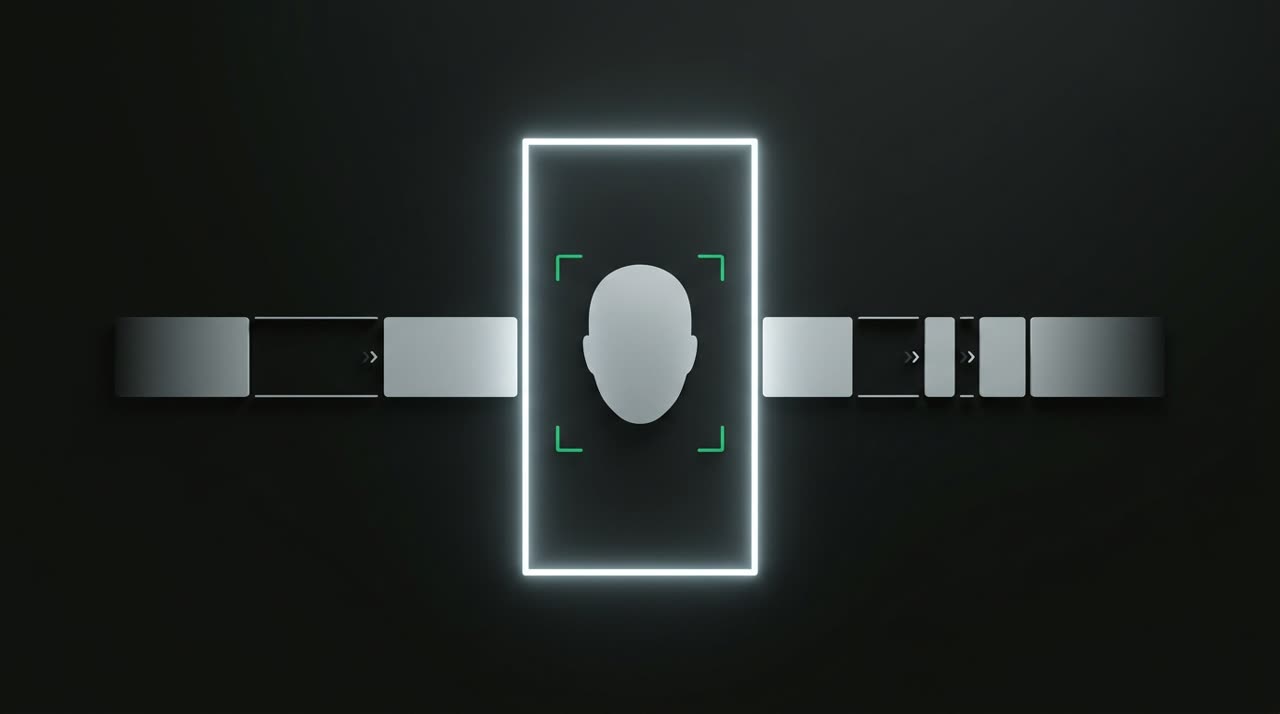
What Is Video Reframe
Video reframe is the process of cropping a horizontally recorded image (16:9) into a vertical format (9:16) without losing what matters: the face of the person speaking. Instead of simply cutting the sides and hoping the person is centered, intelligent reframe follows the speaker throughout the clip, keeping their face always framed.
It’s the difference between a cut that looks professionally edited and one that chops off the presenter’s head or leaves them squeezed in a corner. If you’ve ever taken a podcast or live clip and posted it straight to Reels, you know what we mean: without reframe, the result almost always looks off.
In this guide, you’ll understand what video reframe is, how intelligent reframing works behind the scenes, and how Picotta does it automatically on every cut.
Why Vertical Format Requires Reframe
TikTok, Reels, and Shorts live in 9:16. But most raw content — podcasts, lives, classes, sermons, gameplays — is recorded in 16:9. When you force a horizontal video into a vertical frame, you end up with three bad options:
- Fit everything with bars on top and bottom: the person looks tiny.
- Fixed center crop: if the presenter sits on the left, they disappear.
- Manual frame-by-frame editing: precise but slow and expensive.
Automatic reframe solves this by choosing, at every moment, where the face is and cropping the video around it. The speaker stays centered, large, and clear on the phone screen.
How Intelligent Reframing Works
Behind a good reframe is a face detector and a smooth motion path. In practice, the pipeline does roughly this:
- Detects faces in each segment of the cut.
- Chooses the target — who is actually speaking, not a listener or someone in the background.
- Calculates a smooth trajectory for the virtual camera, avoiding jitter from small head movements.
- Crops the frame following this path, delivering the final 9:16.
The secret is in "following who’s speaking." In a podcast table with four people, what matters is framing whoever has the floor — and switching framing when the speech passes to another person, without nervous ping-pong.
Reframe That Follows Speech, Not Just Movement
A common mistake in automatic reframe is confusing movement with speech. Someone in the audience shifts in their seat, and the camera drags over there. Picotta crosses the mouth movement of each face with the audio transcription to decide who’s really speaking — and only switches focus when the speech is sustained, with a minimum time on each person. The result is a cut that changes shots like an editor would, not a confused sensor.
Reframe Is Not One-Size-Fits-All: Framing Modes
Not every video is a close-up of one person talking. That’s why reframing needs to read the scene before cropping. In Picotta, each cut goes through this automatic analysis:
| Scene | Applied Framing |
|---|---|
| One person speaking | Follows the face (dynamic crop) |
| Two people separated | Stacked screen (one on top, one below) |
| Stage filmed from afar | Center crop on the person |
| Open scene, no clear face | Blurred background with full video centered |
| Gameplay or slide + webcam | Stacked: content on top, camera below |
If detection fails for any reason, the cut falls back to a safe center framing — never breaks. This “scene awareness” is what makes reframe work for podcasts, video lessons, or church lives alike.
Reframe + Hard Cuts: The Combo That Looks Edited
Reframe solves the space (where to look). Hard cuts solve the time: Picotta removes pauses and silences from each cut, tightening the rhythm. Together, they turn raw footage into something that looks like it was edited by a human — with the speaker always centered and no dead time.
If you want to dive deeper into the creative side, check out how to make viral cuts: hook, payoff, and rhythm.
How Picotta Compares
Tools like OpusClip, Klap, and Vizard also do automatic reframing, and do it well — they’re market references. The choice often comes down to details:
- Reframe that follows who’s speaking, crossing mouth movement and audio, not just the face closest to the camera.
- Live monitor: you register the channel (YouTube, Twitch, Kick) and when the live ends, cuts are ready — no uploads needed.
- Hard cuts on generation, not just as an editing option.
- Pricing in Brazilian Real, on card, no dollar conversion to calculate.
- No "AI look": cuts come out clean, with discreet post themes and captions that engage — not that heavy visual style.
It’s an honest comparison: if you want a full overview, see the best AI cut generators and the comparison Cut.Pro vs Picotta.
Who Benefits Most from Reframe
- Streamers: hours-long lives turn into dozens of vertical cuts with you always framed.
- Podcasters: the camera automatically switches between host and guest.
- Churches: sermons filmed from afar on the pulpit come out centered on the preacher.
- Agencies: scale cuts for multiple clients without a dedicated editor for each.
Conclusion
Video reframe is what separates a cut that looks professional from one that looks improvised. Intelligent reframing reads the scene, finds the face of who’s speaking, and crops the 9:16 following that target — smoothly, without jitter, and without missing the moment. Combined with hard cuts and automatic captions, it delivers a video ready to post.
At Picotta, reframe happens on every cut, without you adjusting a single framing handle. Want to see it in action? Start picotting — upload a long video and get vertical cuts ready. You can check plans and pricing or read more on the blog.
Pronto pra picotar o seu próximo vídeo?
Cole o link e receba cortes prontos pra postar. Grátis pra testar.
Comece a picotar →Sem cartão de crédito. Cancele quando quiser.