An Alternative to Kapwing for Captioned Cuts in Portuguese
Kapwing is a solid online editor, but it’s a timeline-based tool. If your challenge is finding and cutting the best moments, you might need a different solution.
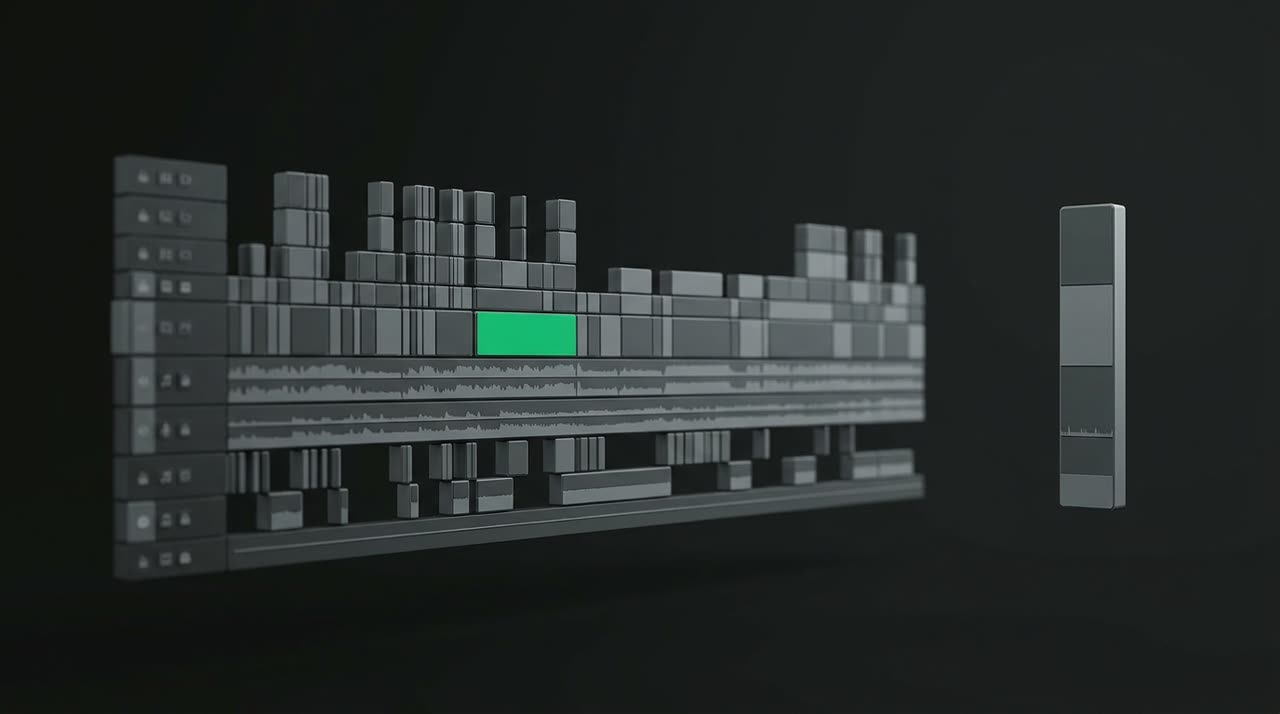
An Alternative to Kapwing When the Issue Isn’t Editing, But Cutting
If you’re here looking for an alternative to Kapwing, you’ve probably used the editor and appreciate its value: it’s online, runs in your browser, offers decent automatic captions, and packs many editing tools in one place. Kapwing is honestly good at what it aims to be — a full-featured timeline editor.
The key detail is this: timeline. Kapwing assumes you already know which segment you want to use and will build it manually, track by track. But that’s not the main pain point for most people making cuts. The real pain is: "I have a 3-hour live stream (or a 1.5-hour podcast episode) and need to pull out ten good clips — and I don’t have all afternoon dragging the cursor looking for moments."
That’s when it makes sense to look at an automatic clipping studio instead of a manual editor. Picotta was built for this: you upload the long video (or paste the link), the AI transcribes it, finds the best moments, and returns clips already formatted in 9:16, with automatic captions in Portuguese, ready to post.
Kapwing vs Picotta: The Difference Is the Approach
It’s not about "one is better than the other" across the board. These tools have different philosophies:
| Kapwing | Picotta | |
|---|---|---|
| Approach | Manual timeline editor | AI-powered automatic clips |
| Finding the best moments | You do it manually | AI selects and scores |
| Automatic captions | Yes | Yes, in Portuguese, with ready-made styles |
| Face reframing | Manual | Automatic (follows the speaker) |
| Live stream monitor | No | Yes (clips when the live ends) |
| Pricing | In dollars | In Brazilian Real, via card |
Where Kapwing Excels
Let’s be honest: if your job is to assemble a video — combining clips from different sources, animating text, creating thumbnails, editing track by track — a full editor like Kapwing gives you finer control. It’s multipurpose. Picotta isn’t a general-purpose timeline editor and doesn’t try to be.
Where Picotta Excels
When the goal is to turn long content into multiple vertical clips quickly, manual editing becomes a bottleneck. Here’s where Picotta shines:
- Automatic moment selection: AI curates by reading the transcript, cross-referencing energy signals and audience peaks, and suggests the most promising segments — each clip comes with a score. You don’t waste time hunting for good moments in 3 hours of footage.
- Face reframing: the 9:16 clip follows who’s speaking instead of a fixed center crop. Two people talking? It stacks both. In Kapwing, this framing is manual work.
- Clean cuts: pauses and silences are automatically removed, keeping the clip’s pace — no need to hunt down every breath on the timeline.
- Real Portuguese captions: ready styles (word-by-word, karaoke, one or two lines) and you can edit the text afterward without using credits.
- Live stream monitor: connect your YouTube, Twitch, or Kick channel, and when the live ends, Picotta fetches the video and delivers the clips. Kapwing simply doesn’t do this.
“Kapwing in Portuguese”: Where Picotta Fits
Many people search for Kapwing in Portuguese because of automatic captions. Kapwing’s captions work, but the whole app feels like a foreign tool adapted for Brazil. Picotta is made for Brazilian creators: interface in Portuguese (and also English/Spanish), captions tuned for Portuguese, and — important for those running this as a business — billing in Brazilian Real, on card, no dollar conversion or surprise charges.
If you want to understand how captions affect clip performance, check out how to make viral clips, where we break down hook, payoff, and rhythm — the three factors that make someone stop scrolling.
When a Timeline Editor Is Still the Right Choice
No illusions here. Choose an editor like Kapwing (or stick with it) when:
- You build videos from scratch, with multiple sources and tracks.
- You need frame-by-frame control on every cut.
- Your volume is low — one or two videos a week, no rush.
Choose an automatic clipping studio like Picotta when:
- You produce a lot of long content (lives, podcasts, classes, sermons).
- You need multiple clips per video, fast.
- You want captions, reframing, and pacing without editing each clip manually.
If your routine fits the second list, check out solutions by profile: clips for streamers, clips for churches, and clips for podcasters show the workflow applied to each case.
And the Price?
Kapwing works with plans priced in dollars. Picotta offers a free plan (with watermark) so you can truly test before paying anything, and paid plans in Brazilian Real starting at affordable rates, billed on card. You can see everything on the pricing page — the model is credit-based (1 credit = 1 minute of source video processed), so you pay for what you use.
Want to compare Picotta with other market tools before deciding? We have a comparison of the best AI clipping generators that lays out the options side by side, no fluff.
Conclusion: The Right Question Isn’t "Which Editor"
Before searching for an alternative to Kapwing, try flipping the question. Do you want to edit videos or do you want to cut long content into many vertical clips? If you want to edit a bit of everything, a full editor makes sense. If you want to clip podcasts, lives, and classes in bulk — with Portuguese captions, face reframing, clean cuts, no AI look, and no dollar payments — the way is an automatic clipping studio.
The good news is you can try it without commitment. Start clipping now: upload a video, see the clips the AI picks, and compare that to the time you’d spend on a timeline. If you still have questions, the Picotta blog has more material to help you decide.
Pronto pra picotar o seu próximo vídeo?
Cole o link e receba cortes prontos pra postar. Grátis pra testar.
Comece a picotar →Sem cartão de crédito. Cancele quando quiser.