CapCut vs Picotta: automatic cuts or manual editing?
CapCut is a full-featured editor. Picotta finds the cuts for you. See when each one makes sense and where Picotta stands out.
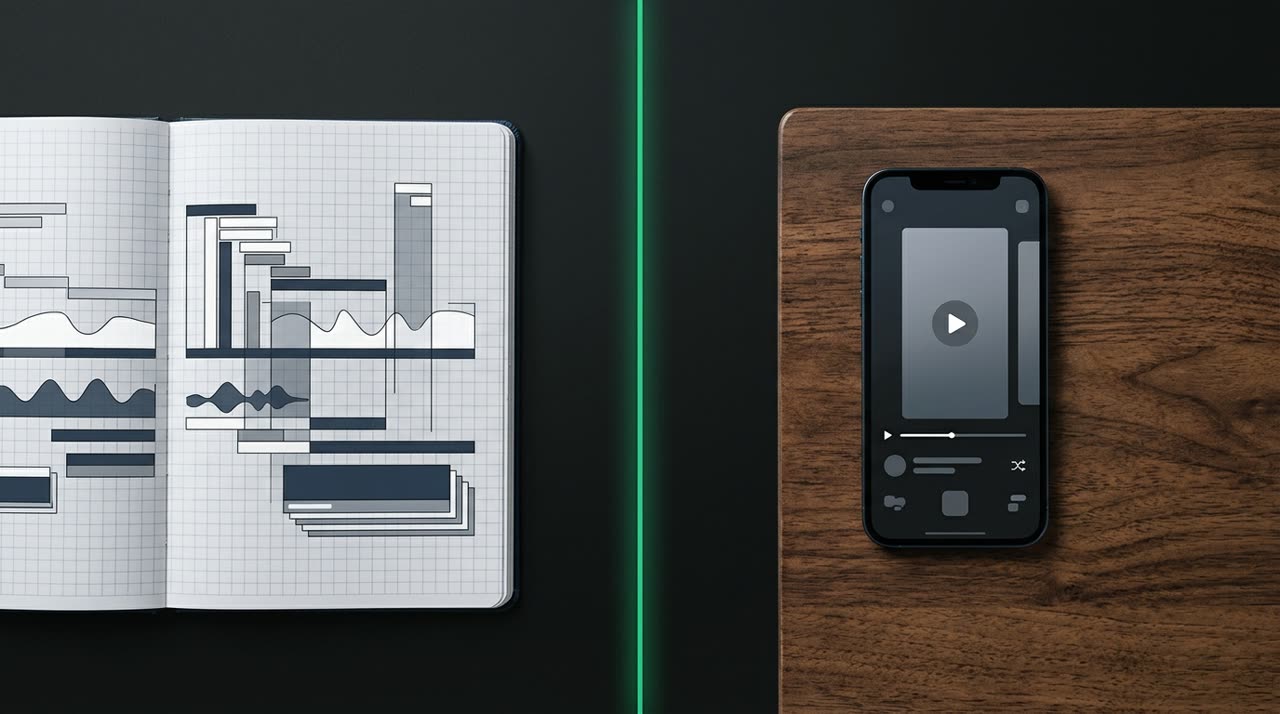
CapCut vs Picotta: two tools, two different jobs
If you cut long videos, sooner or later you wonder: CapCut vs Picotta — is it better to edit everything manually in an editor or let AI find the best moments? The short answer is that they’re not the same tool. CapCut is a general video editor; Picotta is a cutting studio that watches your video, finds the highlights, and delivers ready-to-post 9:16 clips.
This post compares both honestly: where CapCut shines, where Picotta saves you hours, and how to choose based on your content type.
What each one really does
CapCut is a full, free editor with a timeline, transitions, effects, audio library, and templates. It’s great when you already know which part you want and need fine control: cutting frame by frame, syncing effects to beats, building a video from scratch. There’s a learning curve, and the work is all on you — including finding the good moment inside a three-hour live.
Picotta comes before that. You upload the long video (or share a YouTube, Twitch, Vimeo link) and AI transcribes, evaluates the best moments, and returns multiple ready clips: face-framed, auto-captioned, with a hook and — if you want — a branded post theme. It does what CapCut doesn’t: decides what to cut.
The right question isn’t "which is better"
It’s how much your time is worth digging through footage. Watching the whole video looking for the good parts is the most expensive step. Editing after that is quick. Picotta tackles the digging.
When manual editing in CapCut pays off
- You want a single polished video, not multiple clips — an ad, channel intro, or an edit with custom effects.
- The segment is already chosen and you just need timeline precision.
- You love editing and full control is part of your creative process.
- Specific effects and transitions are the core of the video (CapCut has a huge arsenal here).
In these cases, a cut generator gets in the way more than it helps. CapCut is the right tool.
When letting AI find the cuts (Picotta) pays off
- You produce volume: a live, podcast, or sermon turns into dozens of clips weekly. Doing this manually in CapCut is unfeasible.
- The bottleneck is finding the moment, not editing.
- You want brand consistency across all clips without repeating adjustments.
- You monitor lives and want clips ready as soon as the stream ends.
Want to learn more about how to find good moments? Read how to make viral clips.
Direct comparison
| Feature | CapCut | Picotta |
|---|---|---|
| Finds cuts for you | No | Yes (AI + curation) |
| Automatic captions | Yes | Yes |
| Face framing | Manual | Automatic (reframe) |
| Dry cuts (removes pauses) | Manual | Automatic |
| Live monitor | No | Yes |
| Fine timeline control | Full | Clip-by-clip editor |
| Pricing | Subscription in USD | BRL on card |
Where Picotta wins (honestly)
CapCut is a better and more powerful editor than Picotta’s built-in editor — no denying that. But for turning long videos into clips, Picotta has clear advantages:
- Face reframe: the 9:16 clip follows whoever is speaking, even switching between people in a podcast. In CapCut, you’d do this by hand.
- Automatic dry cuts: pauses and silences are removed automatically, keeping the clip’s rhythm. This is manual work in a regular editor.
- Live monitor: Picotta watches your channels (YouTube, Twitch, Kick) and queues clips as soon as the live ends. No editor does this.
- Pricing in Brazilian Real, on card: no dollar conversion, no exchange surprises. Pricing made for Brazilian creators — see the plans.
- No "AI look": clean post themes, readable captions, and a brand that respects aesthetics. The clip looks hand-edited, not mass-generated.
And when you want fine tuning, Picotta has a clip editor (caption, framing, hook, text layers) that re-renders without using credits — you can refine without starting over.
The workflow many use: both together
In practice, CapCut and Picotta don’t compete for many creators. The winning workflow is:
- Picotta does the heavy lifting: finds cuts, frames faces, captions, and delivers 9:16 clips.
- If a specific clip needs special treatment, you export and finish in CapCut — an effect, a custom transition.
This way you don’t waste hours digging and still keep creative control where it matters.
For each type of creator
- Streamers: turn your live into content all day with the monitor. See cuts for streamers.
- Churches: sermons become Reels without an editing team. See cuts for churches.
- Podcasters: one episode becomes dozens of clips. See cuts for podcasters.
- Agencies: scale to multiple clients with custom branding. See cuts for agencies.
If you’re still comparing tools, check out the best AI cut generators and the comparison Cut.Pro vs Picotta.
Conclusion: choose based on your bottleneck
In the CapCut vs Picotta showdown, the choice is simple when you look at your bottleneck. If the problem is editing a video precisely, CapCut is unbeatable and free. If the problem is finding cuts inside hours of video and delivering volume with quality, Picotta does that while you handle the rest — and still leaves fine tuning in your hands.
You don’t have to pick a side forever. Many creators use Picotta to decide what to cut and CapCut to finish special cases.
Want to stop digging and let AI find the cuts for your next video? Start picotting — it’s free to try. Meanwhile, check out more guides on the blog.
Pronto pra picotar o seu próximo vídeo?
Cole o link e receba cortes prontos pra postar. Grátis pra testar.
Comece a picotar →Sem cartão de crédito. Cancele quando quiser.