Video Clips for Educators and Teachers
Long explanations become short vertical micro-lessons with captions. How educators and teachers use clips to reach more students in less time.
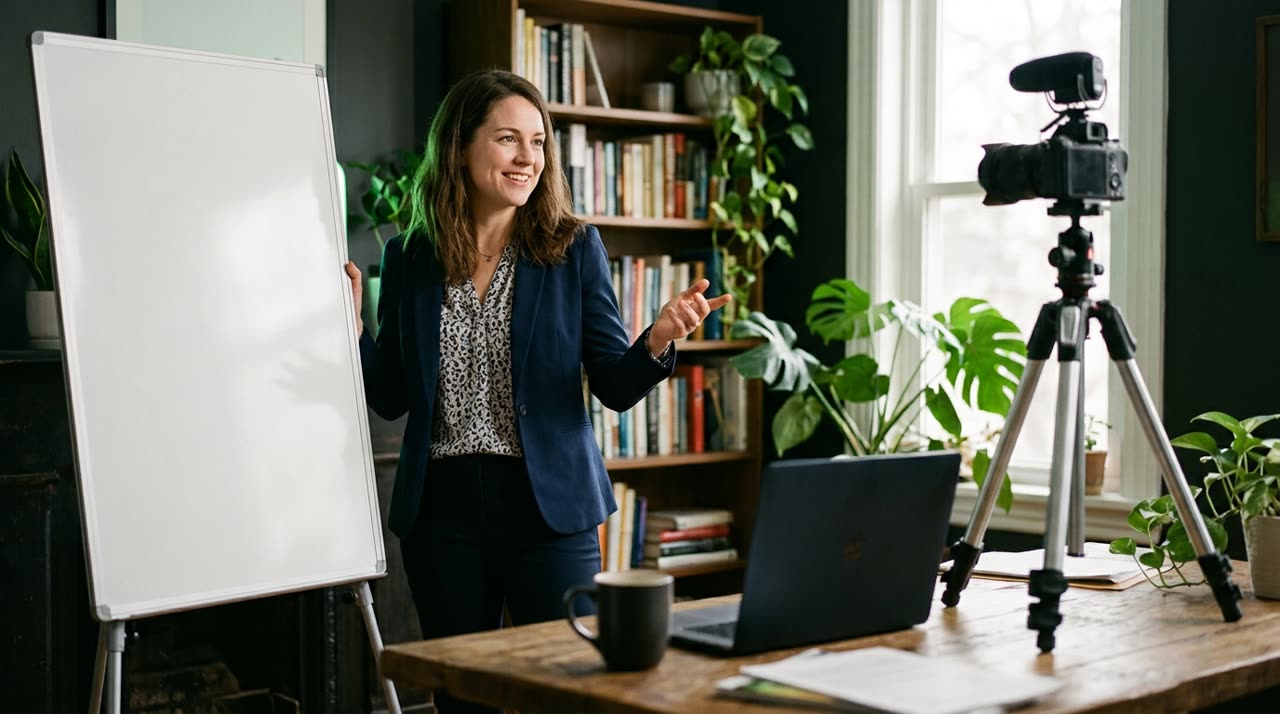
Video Clips for Educators: Turning Long Lessons into Micro-Lessons
You recorded a 50-minute lesson. Today’s student watches 40 seconds. This is the problem video clips for educators solve: taking a long explanation and highlighting the part that teaches just one concept, in vertical format, with captions, ready for Reels, TikTok, and Shorts.
It’s not about "shortening just to shorten." It’s about finding the moment you explain a concept clearly and turning it into a micro-lesson that stands on its own. A one-hour lesson hides ten or fifteen micro-lessons. The job is to find them — and that’s where a clip studio saves your nights.
Why Teachers Need Vertical Video
Behavior has changed. Students discover you in their feed before they get to your course platform. Each vertical clip is a gateway:
- Organic reach: short verticals are still the most widely distributed format on TikTok, Reels, and Shorts.
- Proof of teaching skill: viewers who watch 45 seconds and understand trust that the full lesson is worth it.
- Repurposing: a live session, recorded lesson, or paid webinar becomes weeks of content.
- Accessibility: on-screen captions help those watching without sound — most people — and those who rely on reading.
The bottleneck was never the idea. It was the editing time. Cutting, reframing on the face, typing captions word by word, exporting in 9:16. That manual work is what AI takes over.
What Picotta Does with a Long Lesson
Picotta is a clip studio: you upload the video (or paste a YouTube link), the AI transcribes, finds the best moments, and returns several ready vertical clips. For educators, some features matter more:
Automatic Captions That Follow the Speech
Captions are generated from the transcription and sync with what you say, word by word or in blocks. You choose the style—from clean to bold—and can edit the text afterward to fix technical terms. Lesson full of jargon? Adjust it in the editor without using extra credits.
Face Reframe: You’re Always Centered
Teachers move around, write on the board, point to slides. The face reframe follows the speaker and keeps you centered in the vertical frame, instead of a fixed cut that leaves you on the edge. When the scene is a slide with your webcam in the corner, the studio detects the layout and stacks content and camera—keeping the explanation readable.
Clean Cuts: No Pauses, No "Uhhhs"
Lessons have long breaths, thinking pauses, filler words. The clean cuts remove silences and pauses during generation, keeping the pace steady. A 90-second explanation with three pauses becomes a tight clip that holds attention from start to finish.
Ready Titles, Post Captions, and Hashtags
Each clip comes with a suggested title, a post caption, and niche hashtags—separated by platform (TikTok, Instagram, Shorts). One less tab open when publishing.
Step-by-Step: From Lesson to Clip
- Upload your lesson or paste the link (YouTube, Vimeo, Drive, and other long video sources).
- Choose the mode: "Viral Clips" (AI decides everything) or "Custom" (you control style, aspect ratio, number of clips).
- Let it process: AI transcribes, curates moments, rendering applies captions, face reframe, and clean cuts.
- Review in the Studio editor: adjust caption text, reposition, trim more—without using new credits.
- Download and publish in 9:16, 1:1, or 16:9.
How Picotta Compares
There are good tools out there. OpusClip is strong and established; Cut.Pro serves the Brazilian market well. Tools like Vizard and Klap have their merits. To be honest: each handles the basics of cutting and captioning.
What sets Picotta apart for those working in Brazil:
| Feature | Picotta | Market Standard |
|---|---|---|
| Price and payment | Brazilian Real (BRL), credit card | many only in USD |
| Face reframe | Yes, follows the speaker | varies by tool |
| Clean cuts during generation | Yes | not always |
| Live monitor | Automatically clips live sessions after they end | rare |
| Visual style | No "AI look" | often heavy effects |
Billing in real currency, by card, no currency conversion, and no surprises at month’s end solves a real pain for teachers in Brazil. And the live monitor is handy for teachers doing live lessons: when the stream ends, the clip is already queued. To dive deeper into comparisons, check out Cut.Pro vs Picotta and the best AI clip generators.
Content Tips for Educators
- One idea per clip. Don’t try to teach the whole chapter in 60 seconds.
- Start with the question. "Many people get this wrong on the test" hooks more than "Today we’ll cover...".
- Put the payoff in the clip. Students need to walk away knowing something, not just curious.
- Repurpose live sessions. A live lesson yields dozens of micro-lessons—see how in turning a live into Reels and Shorts.
If you work with educational content production at scale—prep courses, platforms, teams—check out solutions for podcasters and agencies, which share the same workflow of cutting long material into series.
Conclusion
Video clips for educators aren’t a marketing luxury: they’re how today’s student discovers and trusts their teacher. The hard part—finding the right moment, framing, captioning, cutting pauses—is done by AI. Your explanation remains the value; the studio just puts it in a format that circulates.
Upload a lesson and see how many micro-lessons it hides. Start clipping — and check out the plans to pick the volume your routine needs.
Pronto pra picotar o seu próximo vídeo?
Cole o link e receba cortes prontos pra postar. Grátis pra testar.
Comece a picotar →Sem cartão de crédito. Cancele quando quiser.