Automatic Video Captions: Subtitles That Keep Viewers Hooked
Automatic captions have moved beyond accessibility to become a retention tool. Learn how to create captions that engage with AI transcription and ready-made styles.
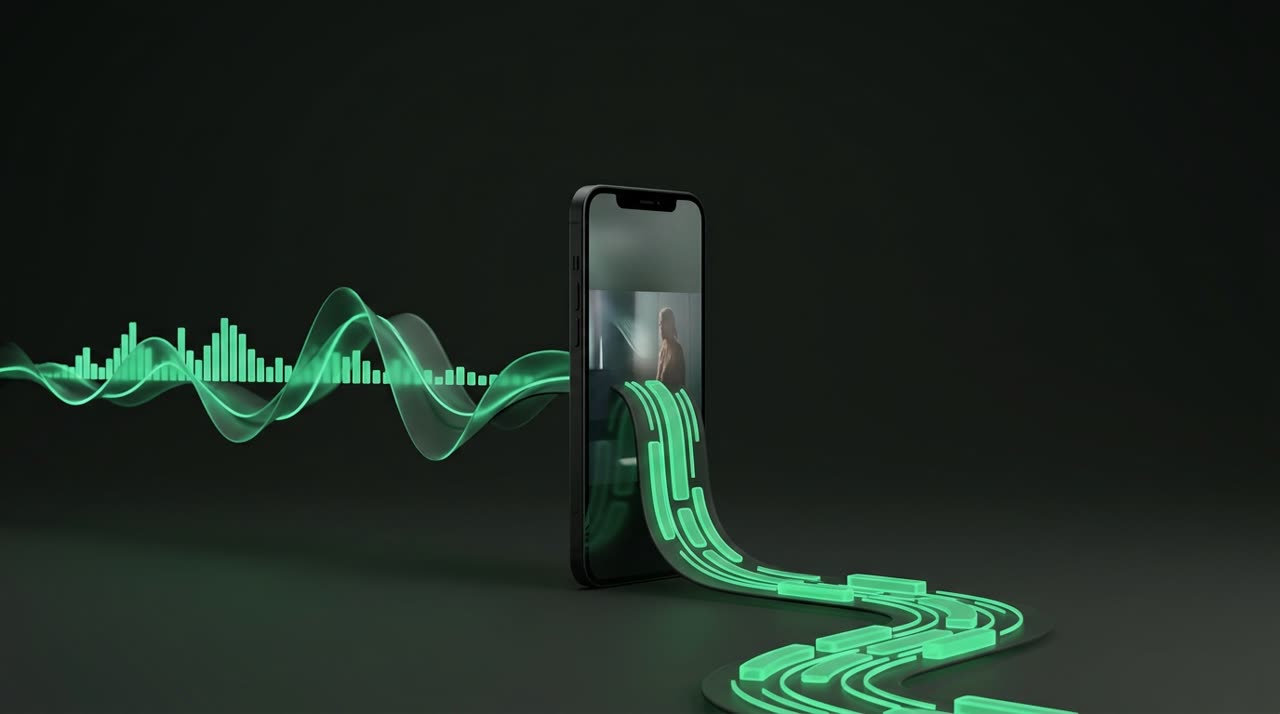
Why Automatic Captions Became Essential
Automatic video captions are no longer just an accessibility feature—they’re now a key part of viewer retention. Most Reels, Shorts, and TikTok videos are watched without sound—on the bus, waiting in line, or late at night in bed. Without captions, viewers scroll past before catching the first sentence.
Good captions aren’t just about transcribing. It’s about timing each word, choosing a style that fits the clip, and keeping the viewer’s eyes glued to the screen even when muted. In this guide, you’ll see how Picotta creates captions that engage—without you typing a single word.
How AI Transcription Works
It all starts with transcription. When you upload a video or paste a link into Picotta’s clip studio, the AI transcribes the entire audio and marks the exact timing of each word. This word-level timestamp enables the karaoke effect—words light up exactly as they’re spoken.
The transcription runs on the whisper-large-v3-turbo model, fast and accurate in Portuguese. After that, each clip comes with embedded captions perfectly synced to the audio, no manual work needed.
Captions on Screen vs. Post Captions
It’s important to distinguish two often-confused terms:
- On-screen captions — text burned into the video, synced with speech. This is what keeps viewers engaged on mute.
- Post captions — the text in the description of your Reel or TikTok, including hashtags.
Picotta handles both. Every clip comes with on-screen captions and a ready-to-post kit: title, description caption about the topic, and niche hashtags, organized by platform tabs (TikTok, Instagram, Shorts).
Caption Styles That Fit Your Clip
Generic captions don’t hold attention. That’s why the studio offers a gallery of styles, applied with one click and previewed live before exporting:
- Impact — large white text with strong outline. The default that works for almost everything.
- Yellow, neon, purple, red, blue — colors matching your channel’s identity.
- Karaoke — words light up as they’re spoken. Great for fast-paced clips.
- Bold and clean — for a more sober look.
Besides style, you choose the layout: word-by-word (one at a time, high impact), one line, or two lines. You can also add a subtle entry animation (pop or fade) so captions appear smoothly without shaking.
Position and Height Matter Too
The like button, TikTok’s progress bar, and profile name all compete for space with captions. In Picotta’s editor, you adjust the caption height so it doesn’t overlap the app’s interface and reposition the post theme header. Small detail, big difference in retention.
Edit Caption Text Without Using Credits
AI transcription nails most words, but proper names, slang, and technical terms sometimes slip through. In Picotta, you can fix caption text directly in the clip editor with live preview—and this doesn’t use credits because the clip is re-rendered only on overlays, over the raw segment the worker already saved.
You can also:
- Rewrite entire caption blocks.
- Change style, layout, and color after the clip is ready.
- Translate captions to Portuguese, English, or Spanish, keeping the same timing for each block.
When Captions Distract (and Picotta Turns Them Off Automatically)
Not every moment calls for captions. A segment with sung music and karaoke captions looks cluttered and amateurish. Picotta’s curation detects when a clip is a worship song or music and renders it without captions, letting the scene breathe. This kind of decision is what a clip studio needs to make on its own so the result doesn’t feel too automated.
Caption + Reframe: The Retention Combo
Captions hold the eye on the text; reframe on the face holds it on the speaker. Together, they’re what separates a clip that keeps viewers from one that loses them by second 3.
Reframe crops the 16:9 video to vertical 9:16 following who’s speaking—the camera tracks the face instead of cutting fixed center. Combined with tight cuts (removing pauses and silences), the clip stays on rhythm, no dead time, with captions lit up the whole time. We cover this in detail in face reframe and tight cuts.
Step-by-Step for Your First Automatic Caption
- Paste the video link (YouTube, Twitch, Kick, and more) or upload the file in the studio.
- Choose caption style, layout, and color—or leave it on recommended mode, which applies the preset that works.
- Generate clips. Each comes captioned, on rhythm, with word timing.
- Adjust text if needed, without using credits.
- Download and post with the ready-to-go title and hashtag kit.
Conclusion
Automatic video captions are one of the cheapest retention levers available today—and one of the easiest to get wrong when done on the fly. With word-level transcription, styles that fit the clip, and sensible caption disabling on worship music, Picotta delivers captions that engage without turning you into a video editor.
Want to see this in action with your content? Start clipping for free—the free plan already includes captions and reframe. To compare volume and features, the plans are here, and the rest of the blog has more practical clipping guides.
Pronto pra picotar o seu próximo vídeo?
Cole o link e receba cortes prontos pra postar. Grátis pra testar.
Comece a picotar →Sem cartão de crédito. Cancele quando quiser.