Framing the Speaker’s Face: Reframe Active Speaker
The cut’s camera automatically follows whoever is speaking in the scene. Understand how reframe active speaker works and why it improves your cut’s quality.
Framing the speaker’s face: the detail that separates amateurs from editors
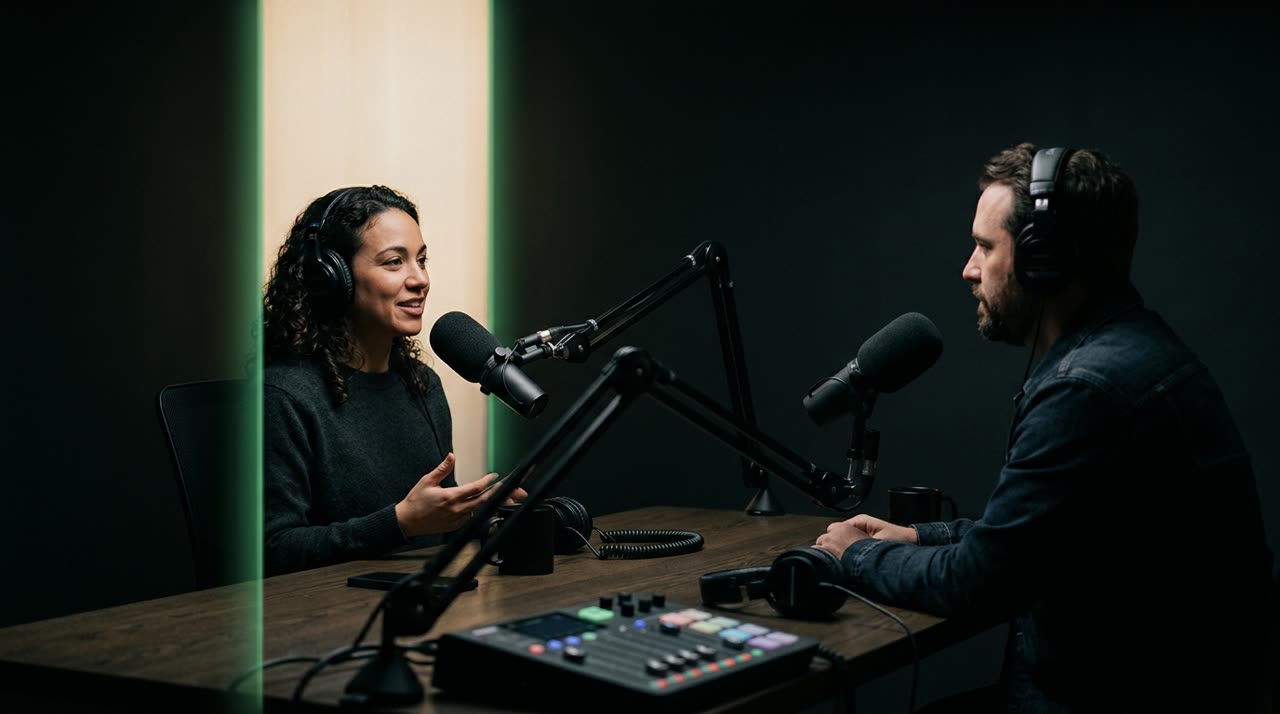
You grabbed a great segment from a two-person podcast, switched it to 9:16 format, and the result looked off: the camera fixed in the middle of the table, no one in focus, both guests squeezed at the edges. The problem isn’t the moment — it’s the framing. Framing the speaker’s face is what makes a cut look hand-edited instead of automatically cropped.
This feature has a technical name: reframe active speaker. Instead of keeping a static center crop, the cut’s camera follows whoever is speaking at that moment — switching from one guest to the other as the conversation flows. It’s exactly what a human editor would do manually, frame by frame. At Picotta, this happens automatically, in every cut.
What is reframe active speaker
Regular reframe already adjusts horizontal video to vertical by following the main face. The active speaker goes a step further: when there’s more than one person on screen, it decides who is speaking and frames that person.
To do this, Picotta combines two signals:
- Mouth movement per person — the detector tracks each face across frames and measures mouth activity (not just if the person is on screen, but if they’re actually speaking).
- Speech mask from the transcription — the same audio that generates captions indicates when there is voice. By crossing “who moves their mouth” with “when there is sound,” the system identifies the speaker.
The result is a camera that switches focus at the right time and doesn’t jump around randomly. Nodding heads don’t count as “speaking”; background audience movement doesn’t steal the frame.
How it avoids common mistakes
Framing the speaker sounds simple but can easily fail. Picotta was calibrated on real videos to avoid these pitfalls:
- Movement isn’t speech. People walking or gesturing a lot aren’t confused with the speaker — face displacement discounts mouth signals.
- Protagonist gate. Only faces large enough in the scene compete for focus. Background audience is excluded.
- Cut on switch. When the speaker changes sides, the framing makes an instant cut, like an editor would — no slow pan crossing the table.
- Minimum time on speaker. To switch, the new speaker must dominate for a sustained period. This kills the “ping-pong” effect in fast conversations.
When Picotta uses each framing mode
Not every video is two people talking. That’s why framing is decided per cut, analyzing the scene:
| Scene | What Picotta does |
|---|---|
| Two or more people talking | Follows who speaks (active speaker) |
| Two people well separated all the time | Stacked screen (one on top, one below) |
| One person speaking | Follows their face |
| Stage/podium filmed from afar | Central crop on the person |
| Open scene, no stable face | Framing with blurred background, no head cropping |
| Slide + webcam, gameplay + facecam | Stacked layout (content + camera) |
You don’t need to configure any of this: in recommended mode, the studio chooses. But if you want to override, you can — there’s a toggle “Frame the face” when generating and a framing selector (Automatic / Follow face / Center / Full screen / Stacked) in the cut editor, without using credits to reprocess.
Why this matters for your content
A well-framed cut holds attention better. The viewer’s eye goes straight to the speaker’s face, captions appear below, and the message comes through clearly. Crooked cuts, cropped heads, or focus on empty chairs make viewers skip to the next video.
This applies to almost every spoken content niche:
- Podcasters with two or more people in the studio — the camera follows whoever answers.
- Streamers reacting with guests on screen.
- Churches, where distant preaching gets a central crop on the right person instead of a lost wide shot.
- Agencies needing to deliver cuts that look edited for multiple clients, at scale.
Reframe is just one piece of smart cutting. It works alongside hard cuts (removing pauses and silences), automatic captions, and AI curation that picks the best moments. If you want the full picture, the guide on how to make viral cuts ties it all together.
How Picotta compares
Framing the speaker’s face isn’t unique to us — credit where it’s due. Tools like OpusClip, Vizard, and Klap have quality reframe and are mature in what they do. If your focus is the US market and you’re fine paying in dollars, they’re solid options. We made an honest comparison of cut generators showing each one’s strengths.
Where Picotta stands out for Brazilian creators:
- Pricing in Brazilian real, on Brazilian cards — no dollar conversion, no surprises at month’s end. Check the plans.
- Live monitor that watches your channel and cuts as soon as the stream ends.
- Hard cuts and reframe active speaker in the same pipeline, no extra plugin.
- No “AI look” — captions and framing designed to feel like editor work, not generic templates.
If you’re coming from another tool, it’s worth reading the direct comparison Cut.Pro vs Picotta.
Start picotting
Framing the speaker’s face is no longer hours of manual work. Upload a video, let the studio follow the speaker, and download ready 9:16 cuts. You can adjust framing later if you want, without spending credits.
Start picotting now and see how your first cut turns out. If you want to explore more, the Picotta blog has guides on captions, live cuts, and moment selection — and if you make cuts for others, check out the affiliate terms to refer and earn.
Pronto pra picotar o seu próximo vídeo?
Cole o link e receba cortes prontos pra postar. Grátis pra testar.
Comece a picotar →Sem cartão de crédito. Cancele quando quiser.