How to Turn Long Classes into Clips for Social Media
A two-hour class becomes dozens of self-contained educational clips. See how to make class and course clips without spending all night editing.
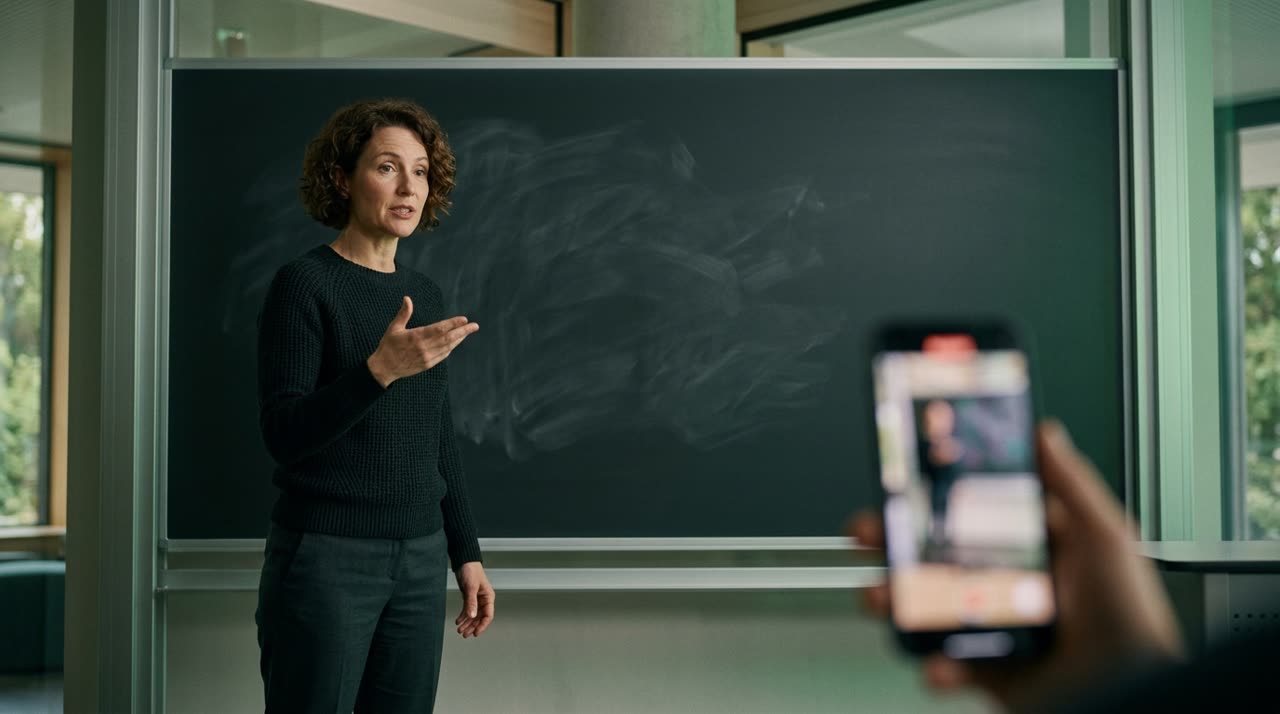
How to Make Class and Course Clips Without Staying Up All Night Editing
You recorded a two-hour class. Inside it, there are about fifteen moments that each could be a Reel on their own. The usual problem: finding those moments, cutting, captioning, and framing takes more work than recording the class. This guide shows how to make class and course clips using an AI-powered clipping studio — no timeline editor, no dragging markers all night.
The key to educational content is that each clip needs to be self-contained: anyone who lands on that video in their feed, with no context, should understand the idea from start to finish. That’s exactly what Picotta’s AI is tuned to find when the genre is education.
Why Classes Are Different from Podcasts or Lives
Podcast clips thrive on reactions and conversation. Class clips rely on a complete idea: a definition, an example, a step-by-step, or a key insight that solves a common question. If the clip starts mid-thought or ends before the conclusion, it teaches nothing — and viewers just scroll past.
That’s why Picotta’s curation scores each clip candidate on dimensions that matter for education:
- Hook in the first seconds (the question or promise that keeps the viewer watching).
- Payoff — the turn, the answer, the "aha" moment. Long clips cut before the conclusion are rejected, not trimmed in the middle.
- Self-contained — works independently, without relying on the rest of the class.
When you select the Education genre (or leave it on "Detect (AI)", which recognizes classes automatically), the engine prioritizes closed educational segments and discards filler, intros, and "let’s review what we saw last week" moments.
Step-by-Step to Make Class and Course Clips
1. Upload the Class or Paste the Link
You can upload the file directly or paste the YouTube, Vimeo, Drive link and other long video sources. Recorded the class live? The entire live stream works as a source — upload goes straight from your browser, no slow server connection needed.
2. Choose the Genre and Segment
Set the genre to Education or Detect (AI). If the class has a long intro you want to skip, use the segment selector (from/to) — that way the AI analyzes only the core content and you don’t waste credits on the opening.
3. Let the AI Find the Moments
Automatic transcription reads the whole class and the curation picks the best educational segments. The AI decides how many clips the class yields and delivers the strongest ones (ranked by viral score), without filler — or you can lock an exact number in Custom mode.
4. Adjust Branding and Captions (or Not)
In Viral Clips mode, the AI applies the best preset: 9:16 ratio, impact captions, clean cuts (removes pauses and filler words like "uh... so...") and face reframe (the framing follows you instead of staying fixed center).
Prefer full control? The Custom mode lets you choose caption style, post theme with your branding, hook, and more.
What Picotta Does Well for Educational Content
| Feature | Why It Matters in a Class |
|---|---|
| Clean cuts | Classes have lots of pauses and filler; clips get straight to the point |
| Automatic captions | Most watch without sound; captions keep viewers engaged |
| Face reframe | You move, gesture, point to the board — framing follows you |
| Self-contained segments | Each clip teaches a complete concept, from hook to payoff |
| Title, caption, and hashtags | Each clip comes with suggested posts per platform |
If you teach live regularly, the live monitor (in paid plans) watches your channel and queues clips as soon as the stream ends — the best class moments arrive ready without you opening anything.
How Picotta Compares
Tools like OpusClip, Vizard, and Cut.Pro do a good job finding moments and captioning — no denying that. Where Picotta stands out for Portuguese creators:
- Pricing in Brazilian Real, on card — no dollar conversion, no surprises at month’s end.
- Face reframe and clean cuts included, no hidden premium plan.
- Live monitor for live class recordings.
- Interface without the typical "AI look" — no neon or glow; just a clean clipping studio.
Want a full comparison? See Cut.Pro vs Picotta and our 2026 best AI clipping tools ranking. If you’re starting with hooks and pacing, the guide How to Make Viral Clips pairs well with this.
You Can Scale (and Monetize)
If you produce courses or teach multiple groups, you can clip content into dozens of posts per week — feeding Instagram, TikTok, and Shorts with material that pulls students into your funnel. Agencies and social media managers do this all day for clients (see the agency solution and the one for podcasters, which shares the same recorded class workflow).
If you’re after actual income, the affiliate program pays a cash commission via Pix when the new users you refer subscribe — educators with audiences tend to convert well.
Conclusion
Making class and course clips no longer means an entire afternoon of editing. Upload your class, choose the Education genre, and the AI returns self-contained educational segments — captioned, face-framed, and ready to post. Use the time you save to teach (or record your next class).
Check all plans and pricing, read more on the blog, and start clipping now: create a free account.
Pronto pra picotar o seu próximo vídeo?
Cole o link e receba cortes prontos pra postar. Grátis pra testar.
Comece a picotar →Sem cartão de crédito. Cancele quando quiser.