Editor Studio: refine cuts without using credits
AI finds the cut, you polish it. Timeline, text layers, color, and framing—all in a free re-render that doesn’t cost credits.
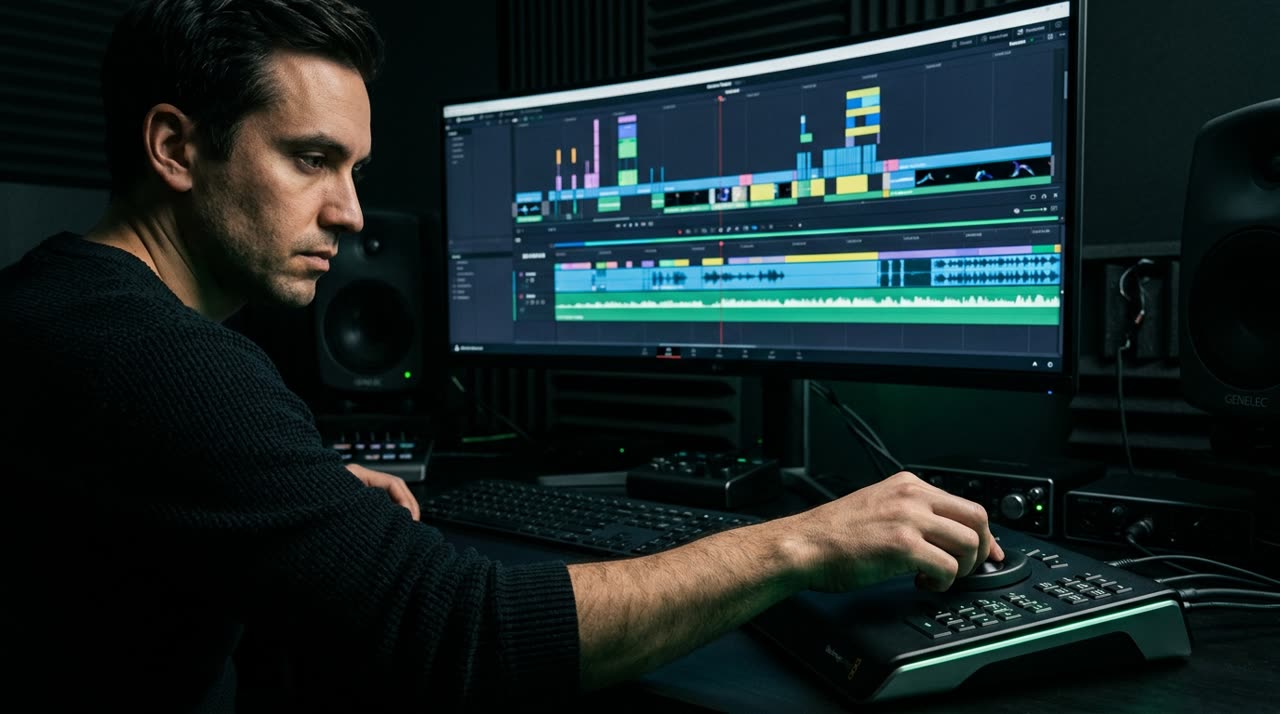
The cut editor studio that refines without charging again
Picotta’s AI finds the moment and delivers a ready cut. But every cut has a detail only you notice: a wrong word in the caption, framing that could better follow the face, a color that needs more contrast. The cut editor studio exists for that—to refine the generated cut without using a single credit.
The math is simple. Credits pay for the heavy lifting: transcription, curation, the analysis that decides where to cut. Once that work is done, tweaking details doesn’t repeat any of it. That’s why the studio’s re-render is free—it reapplies overlays and adjustments on the saved material without running the AI again.
How the free re-render works behind the scenes
When a cut is generated, Picotta saves a raw segment: the video in its original aspect ratio and resolution, without captions, logo, or watermark, with a few seconds of padding at the edges. Along with it come the transcribed words with their timestamps and the framing trajectory.
Editing means rewriting the top layer over this raw segment. Changing caption text, adjusting color, shifting framing—none of this touches what cost credits. The studio rebuilds the composition and returns a new version of the file in seconds.
It’s worth knowing the limits, because we don’t hide them:
- You get a few edits per cut—enough for finishing touches, not endless re-rendering.
- The watermark follows the rules of your current plan at the time of editing.
- Cuts made from separate clips aren’t editable in the current studio version.
Timeline: where you see the whole cut
The heart of the studio is the timeline. It’s not a progress bar—it’s a real timeline, like a professional editor:
- Ruler with speech waveform, drawn from the words. You see where there’s voice and where there’s silence without downloading audio.
- Draggable caption blocks: drag the body to move in time, drag edges to adjust start and end, click to jump there.
- Trim handles on the edges to shorten or extend the cut within the raw segment’s padding.
- Playhead you drag or click to seek, with 1x, 2x, and 4x zoom and auto-follow.
- Undo and redo with history, keyboard shortcuts (space to play, Ctrl+Z, Ctrl+Shift+Z), and help on "?".
All with faithful preview: what you see on screen closely matches the downloaded result. Captions, animation, framing, and layers are composed live—no surprises after download.
Free text layers
Besides automatic captions, the studio lets you add your own text layers: titles, speaker names, notices. Each layer is draggable in the preview, with size and color, and—here’s the trick—has a time window.
You set "start here, end there" with the "Start at cursor" and "End at cursor" buttons, so the text appears only in that segment. On the timeline, each layer becomes a block you move and resize like a caption block. You can duplicate a layer with Ctrl+D and translate the entire caption to PT, EN, or ES while keeping word timing.
Color, effects, and styled captions
Refining isn’t just about text. In the studio you get:
- Color looks applied per cut (not during generation—color is post-production), with faithful preview.
- Scene effects in moderation: punch-in (static zoom), vignette, and grain, from subtle to medium.
- Animated captions (pop or fade) that appear once per block, without jitter.
- Editable hook: bar color, vertical position, or remove it entirely.
And because Picotta’s style avoids the "AI look", effects that distract more than help—like flashy or shaky—are purposely left out. The goal is editor-quality finishing, not gimmicks.
Framing: the edge that works in the re-render
This is what sets Picotta apart from many generators. Each cut saves the framing trajectory, and the studio lets you choose how you want it:
| Mode | What it does |
|---|---|
| Automatic | The generation’s decision (follows face, stacked, centered, or full screen) |
| Follow face | Rebuilds the pan that tracks the speaker |
| Centered | Static centered crop |
| Full screen | Crops content over blurred background |
| Stacked | Cam on top, content below (gameplay, video lessons) |
Since the trajectory is saved, switching modes doesn’t re-detect any face—the cost is nearly zero and the result is instant. The same engine for face reframe and clean cuts (pause removal) that generates the cut is reused by the studio.
Where Picotta shines (and where it acknowledges others)
Tools like OpusClip and Cut.Pro are good and solve a lot—they’re honest about that. But for editors in Brazil, Picotta combines a package that’s often missing:
- Pricing in Brazilian Real, on card—no surprise dollar conversions.
- Cut editor studio with free re-render—finishing touches don’t cost extra.
- Face reframe and clean cuts reused in the editor, not just generation.
- Live monitor that cuts the VOD as soon as the stream ends.
- No "AI look"—cuts come out with real editor polish.
If you want a deep comparison, check out Cut.Pro vs Picotta and the best AI cut generators comparison. And if your focus is volume per live, see solutions for streamers, churches, podcasters, and agencies.
Start clipping
The cut editor studio is the step that turns an automatic cut into your cut. AI does the heavy lifting, you do the finishing—and finishing doesn’t cost credits. See plans at pricing, read more on the blog, and when you’re ready, start clipping.
Pronto pra picotar o seu próximo vídeo?
Cole o link e receba cortes prontos pra postar. Grátis pra testar.
Comece a picotar →Sem cartão de crédito. Cancele quando quiser.