How to Add Automatic Captions to Your Clips
A step-by-step guide to automatically caption your clips, adjust the text, and pick a style that keeps viewers engaged.
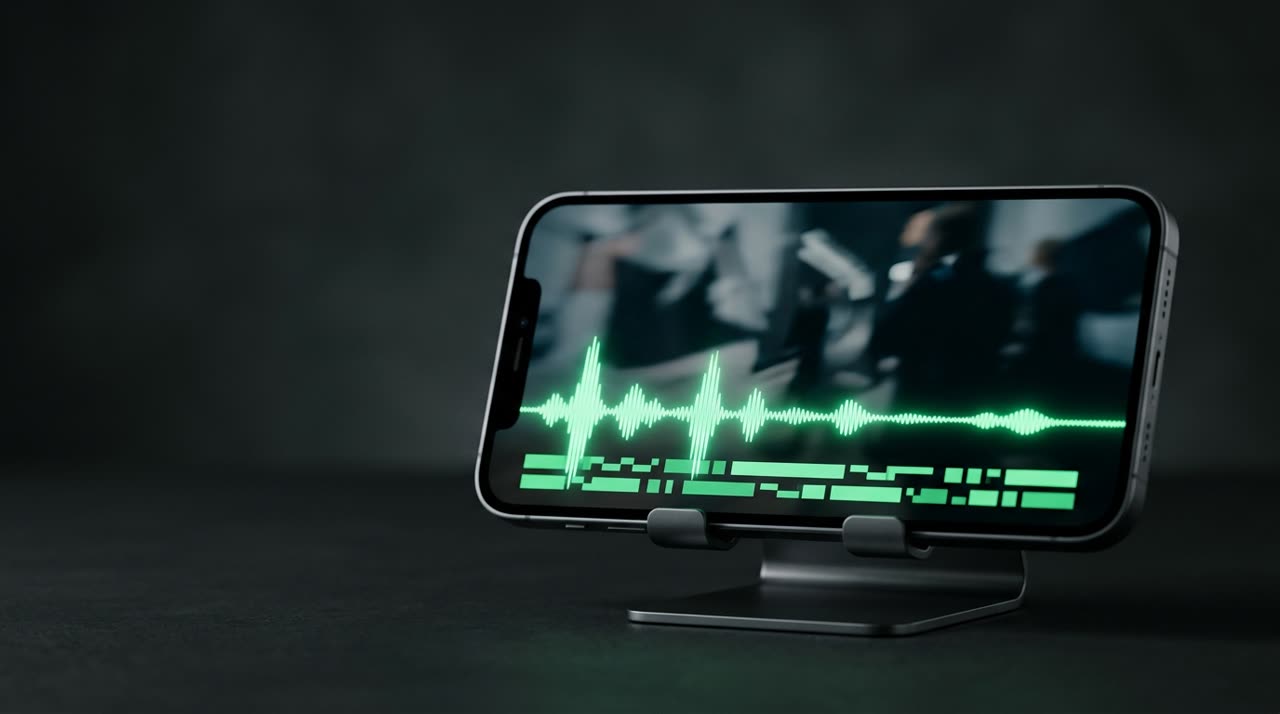
How to Add Automatic Captions to Video Clips
Almost everyone watches Reels, TikTok, and Shorts without sound. If your clip doesn’t have captions, it gets overlooked in the feed. The good news: nowadays you can add captions without typing a single word. In this guide, you’ll learn how to add automatic captions to video clips, fix the text when the transcription slips up, and choose a caption style that grabs attention in the first few seconds.
The idea is simple: audio turns into text, text becomes synced captions, and you just fine-tune what you want. No dragging text boxes frame by frame.
Why Automatic Captions Changed the Game
Manually captioning is the most tedious part of editing. A two-hour live stream can produce dozens of clips, and captioning each one by hand is impossible. That’s why automatic captions are now standard in any serious clip studio.
The benefit isn’t just saving time. Well-made captions bring three key things:
- Retention: viewers understand the clip even on mute, so they keep watching.
- Accessibility: deaf or hard-of-hearing people can enjoy the content.
- Rhythm: word-by-word captions create movement on screen and mimic the style of clips that already perform well.
Step-by-Step: Automatically Captioning a Clip
In Picotta, captions are part of the clipping process — not a separate step. Here’s how it works:
- Upload your video or paste a link. You can upload a file or paste a YouTube, Twitch, Vimeo, or other source link. The studio recognizes the source automatically.
- AI transcribes the audio. The automatic transcription detects each word and the exact time it’s spoken. This enables perfect syncing.
- Clips come out captioned. Each 9:16 clip already includes embedded captions in the style you chose, ready to post.
- Make adjustments if needed. Open the clip and spot a wrong word? Fix the text directly in the editor without redoing the clip.
The key point: captions aren’t just a block of text. They come from synchronized transcription, so they follow the speech at the right time.
Choose Your Caption Style
Generic captions don’t engage. That’s why Picotta offers a visual gallery of styles — you see how each looks before generating. Styles include:
| Style | When to Use |
|---|---|
| Impact | Word-by-word, large and centered — the favorite for viral clips |
| Karaoke | Highlights the spoken word in real time, great for rhythm |
| Yellow / Neon / Purple | Bold colors that pop in the feed |
| Clean | Subtle, for more sober or professional content |
You also control the layout: word-by-word, one line, or two lines. And the entry animation (pop or fade) gives a handcrafted feel without looking like "AI-made."
Editing Caption Text
Automatic transcription is great, but no AI is perfect — proper names, slang, and technical terms often get missed. With Picotta, you don’t have to accept errors or redo clips wasting credits.
In the Studio editor, each clip stores text in blocks. You can:
- Fix wrong words directly in the caption block;
- Adjust style, color, and position in the live preview;
- Move blocks on the timeline if the timing needs tweaking;
- Preview the final result before exporting, ensuring the preview matches the final render.
Even better: editing the text of an already generated clip doesn’t use credits. The studio re-renders just the caption layer over the video in seconds.
Translate Captions
If your audience is international, you can translate captions to Portuguese, English, or Spanish inside the editor while keeping the original timing. One clip, three languages.
What Picotta Does Differently
There are several good automatic caption tools out there — OpusClip, Vizard, Cut.Pro. They handle basic transcription well, and that’s fair to acknowledge. Here’s where Picotta stands out:
- Pricing in Brazilian Real, with local cards. No dollars, no conversion fees, no surprises on your bill. Check the plans.
- Face reframe. The 9:16 clip follows whoever’s speaking, so the caption and face are always well framed.
- Clean cuts. Pauses and silences are automatically removed, keeping the clip’s pace — captions sync with the compressed timing.
- Live monitor. Link a channel and when the live ends, captioned clips are generated automatically.
- No "AI look." Caption styles designed to look like human editing, not robotic templates.
For an honest side-by-side, read Cut.Pro vs Picotta and the best AI clip generators comparison 2026.
Captions Are Just the Start of a Great Clip
Good captions keep viewers watching, but the clip needs hook, payoff, and rhythm to truly perform. Combine this guide with how to make viral clips, where captions are part of a full strategy.
If you work with volume — streamers, churches, podcasters, or agencies — automatic captions go from detail to essential, making daily publishing possible without editing bottlenecks.
Conclusion
Adding automatic captions to a video clip is no longer a hours-long task. Upload your video, AI transcribes it, clips come out captioned in your chosen style, and text is ready to tweak in the editor at no extra cost. Captions that engage, sync perfectly, and fit your style.
Ready to try it out? Start clipping and caption your first clip now.
Pronto pra picotar o seu próximo vídeo?
Cole o link e receba cortes prontos pra postar. Grátis pra testar.
Comece a picotar →Sem cartão de crédito. Cancele quando quiser.