How to Make Gameplay Clips with Stacked Facecam
Game on top, facecam below, all vertical and automatic. See how to make stacked facecam gameplay clips without opening an editor.
How to Make Gameplay Clips with Stacked Facecam (No Frame-by-Frame Editing Needed)
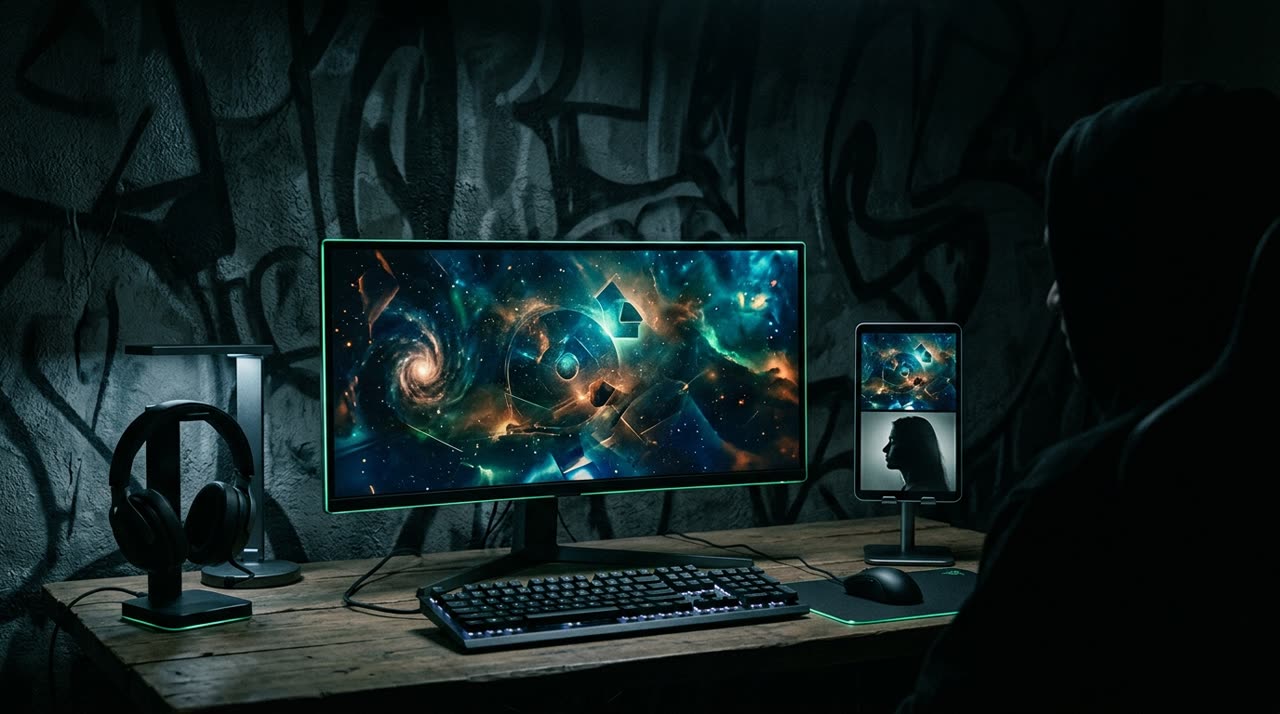
If you play and stream, you’ve been there: an epic play, an unforgettable facecam reaction, but it’s all stuck in a long horizontal VOD. To post vertically, you need both the game and your face on screen at the same time — and that’s where most tools fail. In this guide, you’ll learn how to make gameplay clips with facecam using Picotta’s automatic stacked layout, which places game and camera in 9:16 without opening an editor.
Picotta is a clip studio: upload your long video (or paste the link) and get vertical clips ready for TikTok, Reels, and Shorts. For gameplay, the trick is understanding that the screen carries two contents — the game action and your reaction — and neither can disappear.
Why Gameplay Doesn’t Fit in a Regular Clip
Gameplay is made in 16:9. Shorts live in 9:16. When you force a horizontal video into vertical, one of three bad things happens:
- Center crop cut: you only get the middle of the screen and lose half the action (and sometimes the entire facecam).
- Blurred bars: the game appears small in the middle with blurred bars on top and bottom — unreadable on mobile.
- Only the camera: the game disappears, and the clip loses all context of the play.
The manual fix would be editing frame by frame in CapCut or Premiere, positioning two layers by hand. It works once. It doesn’t work if you want to clip an entire stream and post every day.
The Automatic Stacked Layout: Game + Facecam in One Vertical
When the video is gameplay with webcam, Picotta detects the facecam box on screen and creates the clip in two bands within 9:16:
- Your camera on top, anchored on your face so it doesn’t cut off forehead or chin.
- The game below, filling the rest of the vertical with the highlighted action.
The result is the format gamers use most on Shorts — your reaction and the play visible together — but automatic. You don’t position anything: the studio identifies where the camera is (real frame or borderless chroma key) and composes it on its own.
What if the Layout Changes Mid-Video?
What fills the screen isn’t always the facecam. That’s why Picotta classifies the scene and chooses the right framing per clip:
| Detected Scene | Layout Picotta Applies |
|---|---|
| Gameplay + facecam | Stacked: camera on top, game below |
| Gameplay without camera | Fullscreen on the action point |
| You reacting (camera only) | Reframe on the face, following the speaker |
| Menu/static screen with webcam | Readable composition of content + camera |
In other words: the layout adapts to the content, not the other way around. If you want to dive deeper into this framing adjustment, check out what is video reframe.
The AI Finds the Moment — Doesn’t Cut Random Parts
Cutting random 60-second blocks is easy for any script. The hard part is finding the right moment. Picotta’s curation:
- Transcribes the audio and reads what was said.
- Measures sound energy peaks — the clutch scream, the call’s laughter, the heated argument.
- In YouTube live streams, cross-references the most rewatched parts by the real audience.
Dead moments don’t become clips; the play that made the call explode does. Each clip comes back with a potential score, so you post first what’s most likely to engage.
Jump Cuts: The Pace That Holds the Viewer’s Attention
Gameplay has a lot of downtime between plays. Picotta’s jump cuts automatically remove pauses and silences, keeping the clip at a jump cut pace — which stops viewers from swiping to the next video. No fluff, no "wait, it’s coming."
Combine this with automatic captions (essential for sound-off feeds) and you get a clip that’s already in the style of channels that live off clips. To go deeper into pacing and structure, see how to make viral clips.
How to Make Your Gameplay Clips in 3 Steps
- Upload the link or file. Paste the URL of your YouTube, Twitch, or Kick VOD, or upload the file directly. No heavy software needed.
- Choose the essentials. Brand and, if you want, the segment — the AI decides how many clips the video yields, or you lock an exact number in Custom mode. In automatic mode, the AI applies the recommended preset — stacked when there’s facecam, jump cuts, and captions — and you don’t touch anything else.
- Download the ready clips. Vertical, captioned, with game and camera stacked. Ready for TikTok, Reels, and Shorts.
If you stream often, the live monitor closes the loop: register your channel, stream as usual, and when the broadcast ends Picotta grabs the VOD and queues the best moments automatically. Details on the streamers solutions page.
Picotta vs. Foreign Tools: Honest Take on Where Each Excels
Tools like OpusClip, Klap, and Vizard are competent and helped popularize AI clipping — credit to them for opening this path, and some have huge template libraries. But for Brazilian gamers, some points favor Picotta:
- Pricing in Brazilian Real, on local cards. Charged in BRL, no dependence on fluctuating dollar or international accounts.
- Automatic stacked gameplay + facecam. The layout gamers use most, built by detecting the camera box.
- Native live monitor for YouTube, Twitch, and Kick — clips queue without opening the tool.
- Face reframe and jump cuts already in the recommended preset.
- No "AI face." Clean cuts, captions that fit the feed, no over-the-top templates.
Want the full picture? Compare in best AI clip generators of 2026 and, against the Brazilian competitor, in Cut.Pro vs Picotta. We recognize each tool’s strengths and show where Picotta leads.
You Can Make Money Clipping Gameplay
Clipping your own stream already creates content all day from one live. But those who clip for other creators turn it into a service — and the affiliate program pays a cash commission, via Pix, for referrals that become customers — rules are in the affiliate terms.
Conclusion: You Play, the Studio Stacks
Making gameplay clips with facecam stopped being editor work. With the automatic stacked layout, the game goes below, your camera goes above, captions come in automatically, and jump cuts set the pace — all in 9:16, ready to post. You focus on the play; the studio handles the rest.
See all posts on the blog, check plans on pricing, and whenever you want, start clipping.
Pronto pra picotar o seu próximo vídeo?
Cole o link e receba cortes prontos pra postar. Grátis pra testar.
Comece a picotar →Sem cartão de crédito. Cancele quando quiser.